
Integrations & Customization
Using Workspaces for Team Collaboration

Workspaces and collaboration tools in Survia make it easy to manage team projects and content in a streamlined way. Whether you're inviting team members to collaborate or organizing them into specific workspaces, Survia ensures seamless teamwork.
Collaborate Page: Inviting Team Members
The Collaborate page allows you to invite others to join your workspace and work together effectively. Here’s how to use it:
-
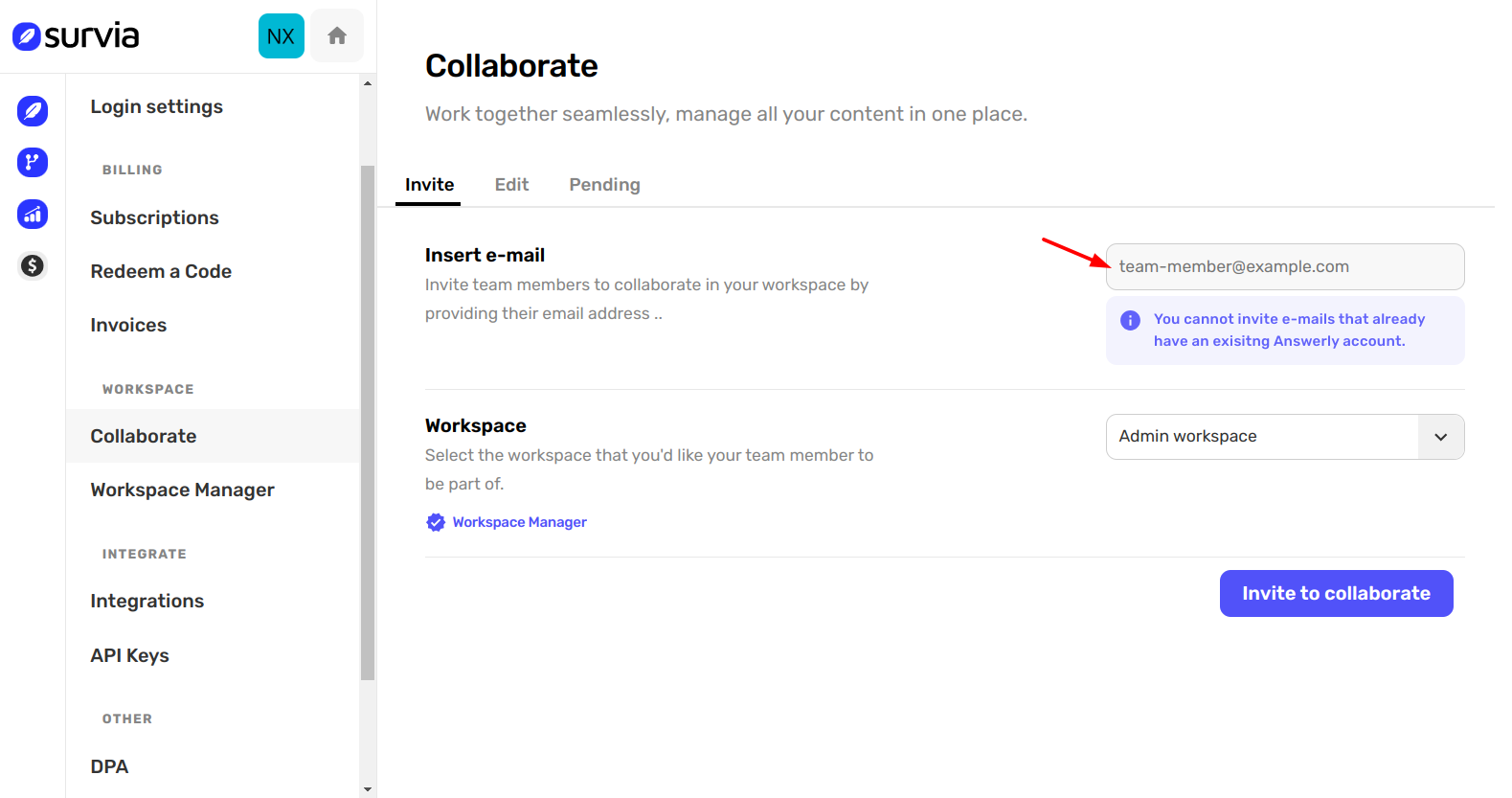
Invite Team Members
Enter the email address of the person you want to invite in the input field provided (e.g.,team-member@example.com).⚠️ Note: You cannot invite emails that already have an existing Answerly account.
-
Select the Workspace
Choose the workspace where the team member will collaborate using the dropdown menu.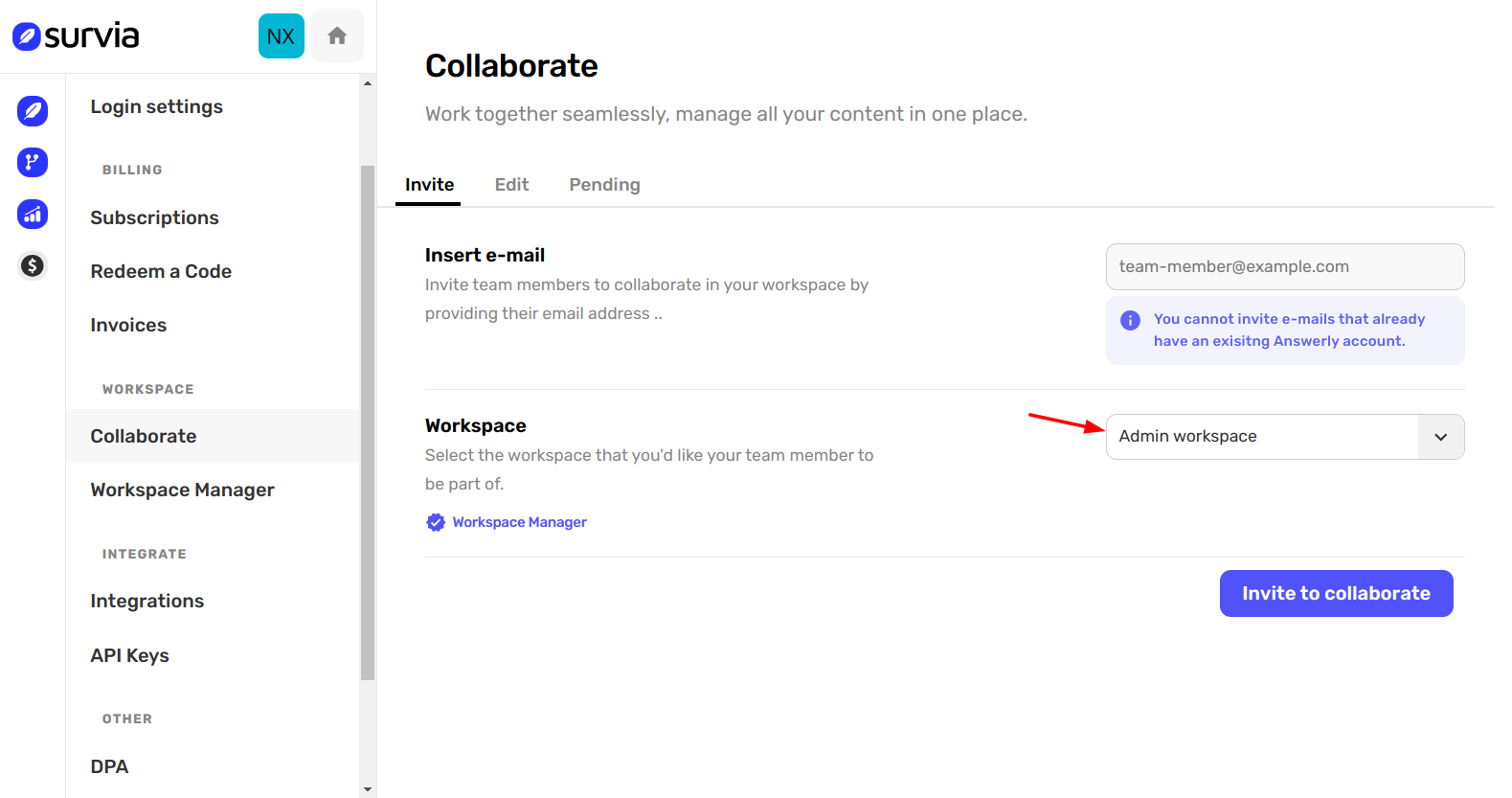
-
Send the Invitation
Click Invite to Collaborate to send the invitation. Pending invites will be listed under the Pending section for easy tracking.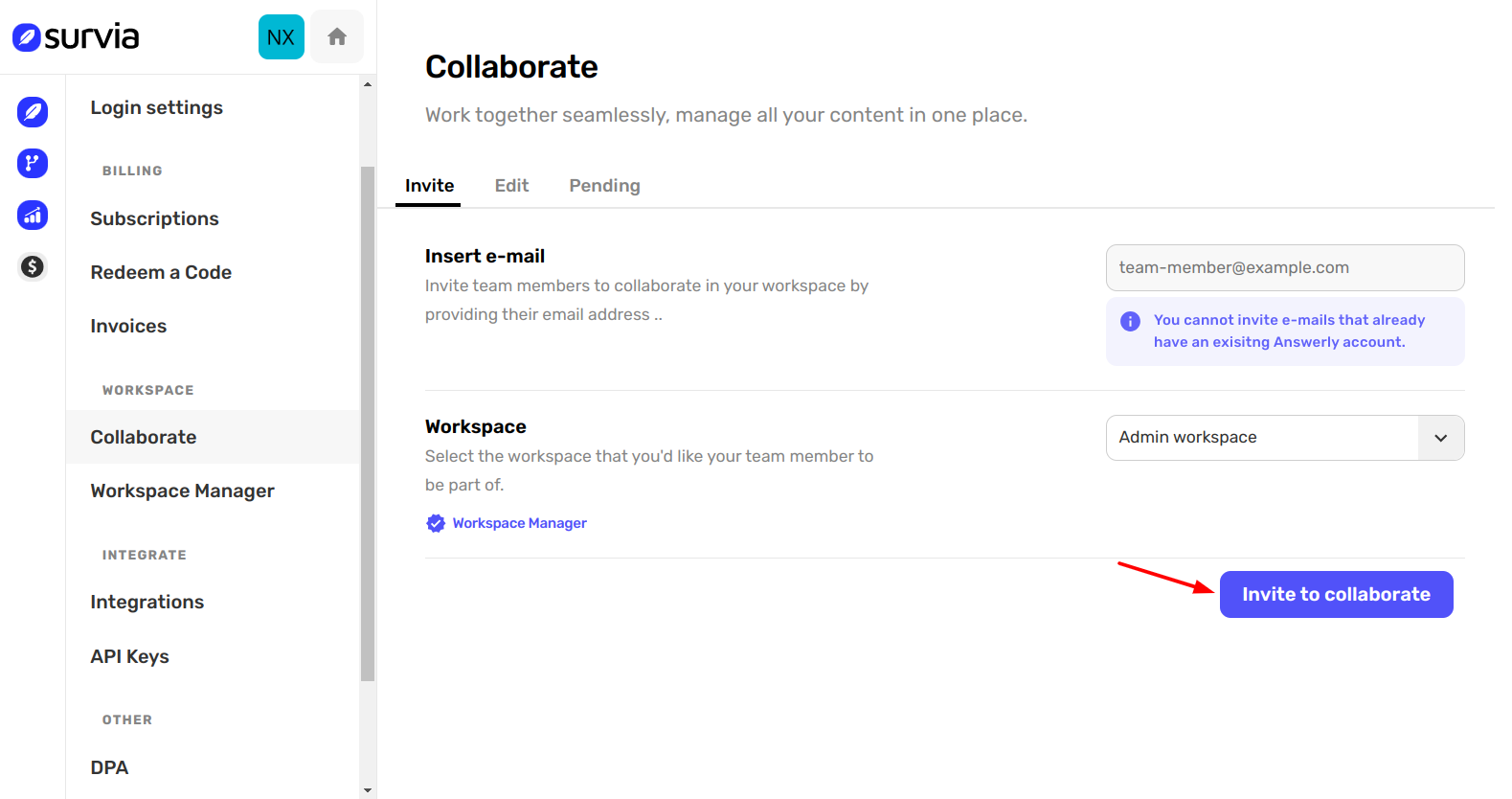
Workspace Manager: Organizing Projects and Teams
The Workspace Manager lets you separate team members and their projects into distinct workspaces. Here’s how to manage them:
-
Select the Current Workspace
Use the Current Workspace dropdown to activate the workspace for your session. This selection will be remembered in your browser until changed.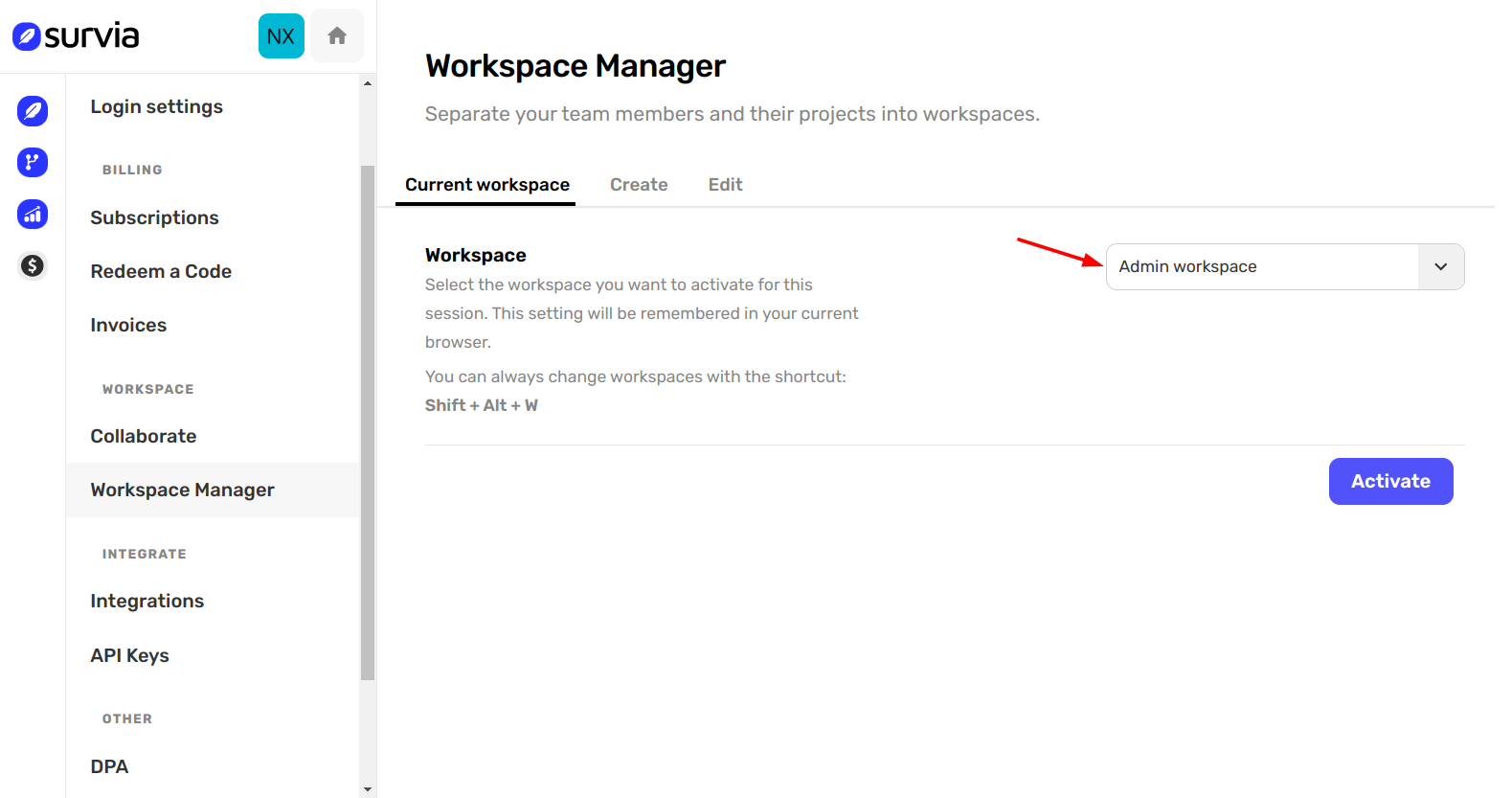
-
Create a New Workspace
Click Create to add a new workspace. This is useful for organizing teams or projects into separate environments.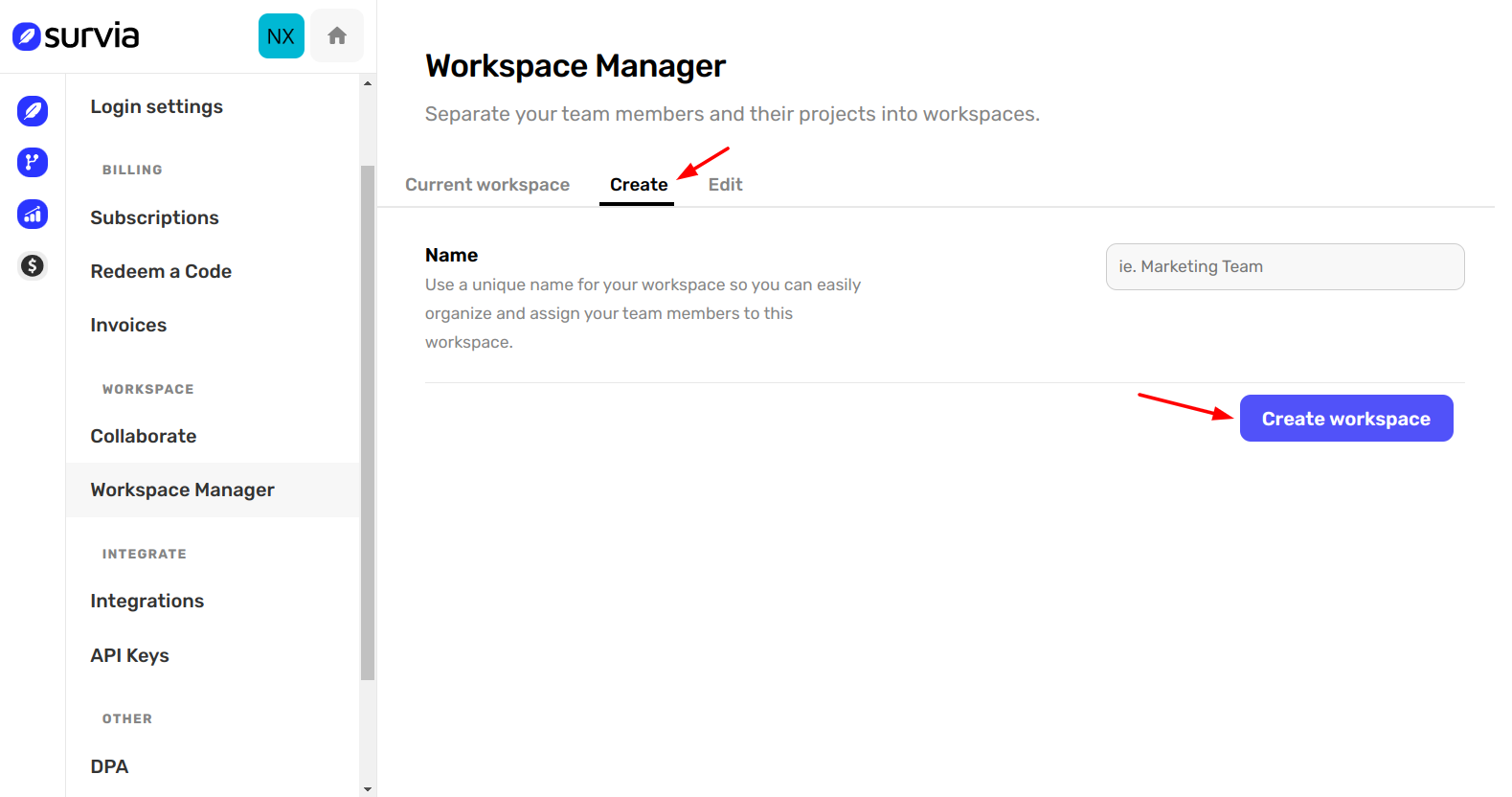
-
Edit Existing Workspaces
Use the Edit tab to rename or adjust workspace settings.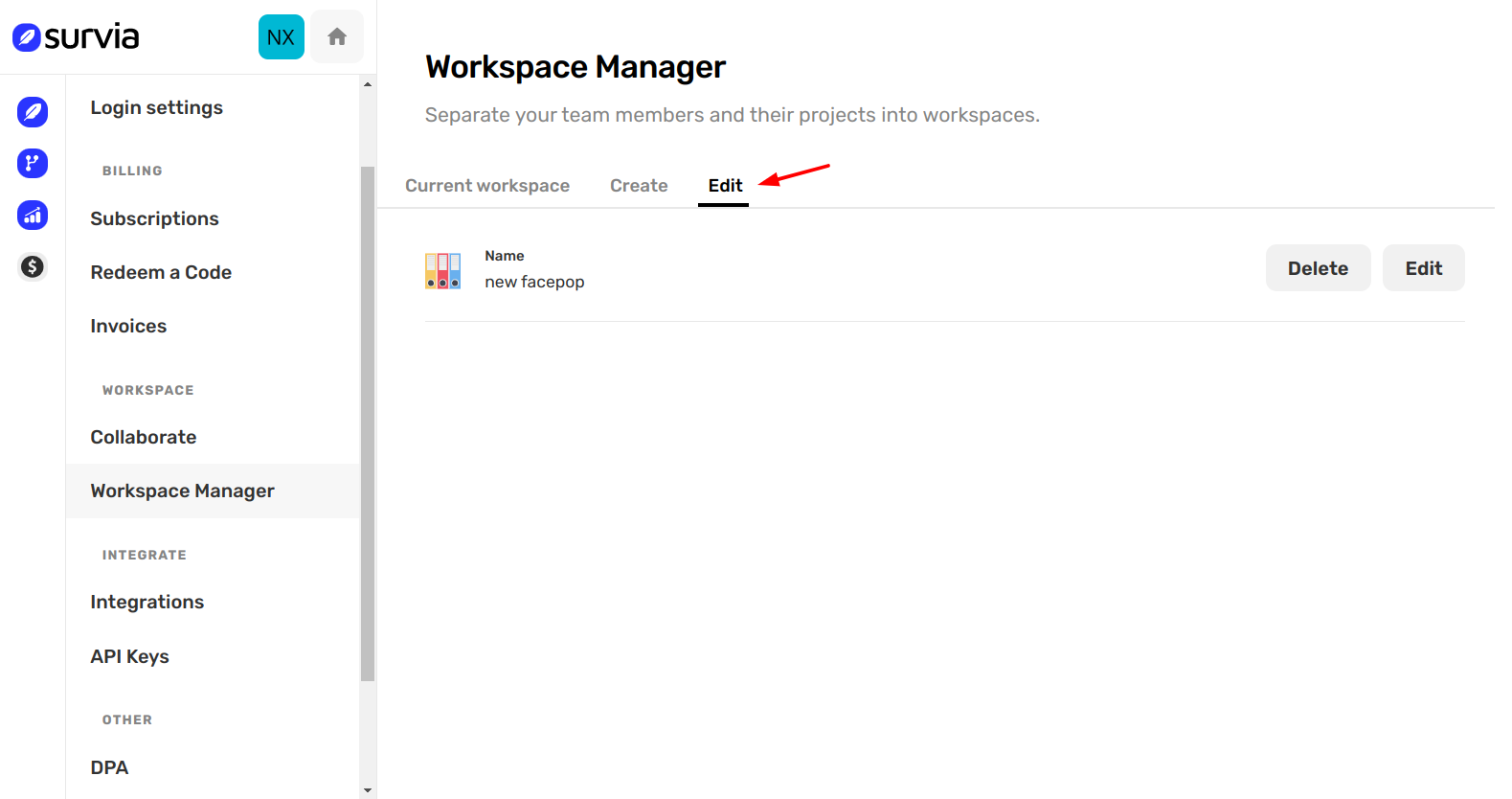
-
Quickly Switch Workspaces
Change workspaces on the fly using the shortcut:Shift + Alt + W.
By using these tools, you can easily manage your team’s access and projects while maintaining clear organization across workspaces. If you need further assistance, check out our Help Center for detailed guides and support.