
Integrations & Customization
Setting Up a Custom Domain (CNAME)

Customizing your survey's URL with your own domain can help strengthen your branding and make the survey link more professional. Survia makes this process easy with the ability to add a custom domain via a CNAME record.
How to Set Up a Custom Domain
-
Navigate to the Get Link Page
Go to the Get Link page for your survey. Here, you'll see your automatically generated link as well as an option to add a custom domain.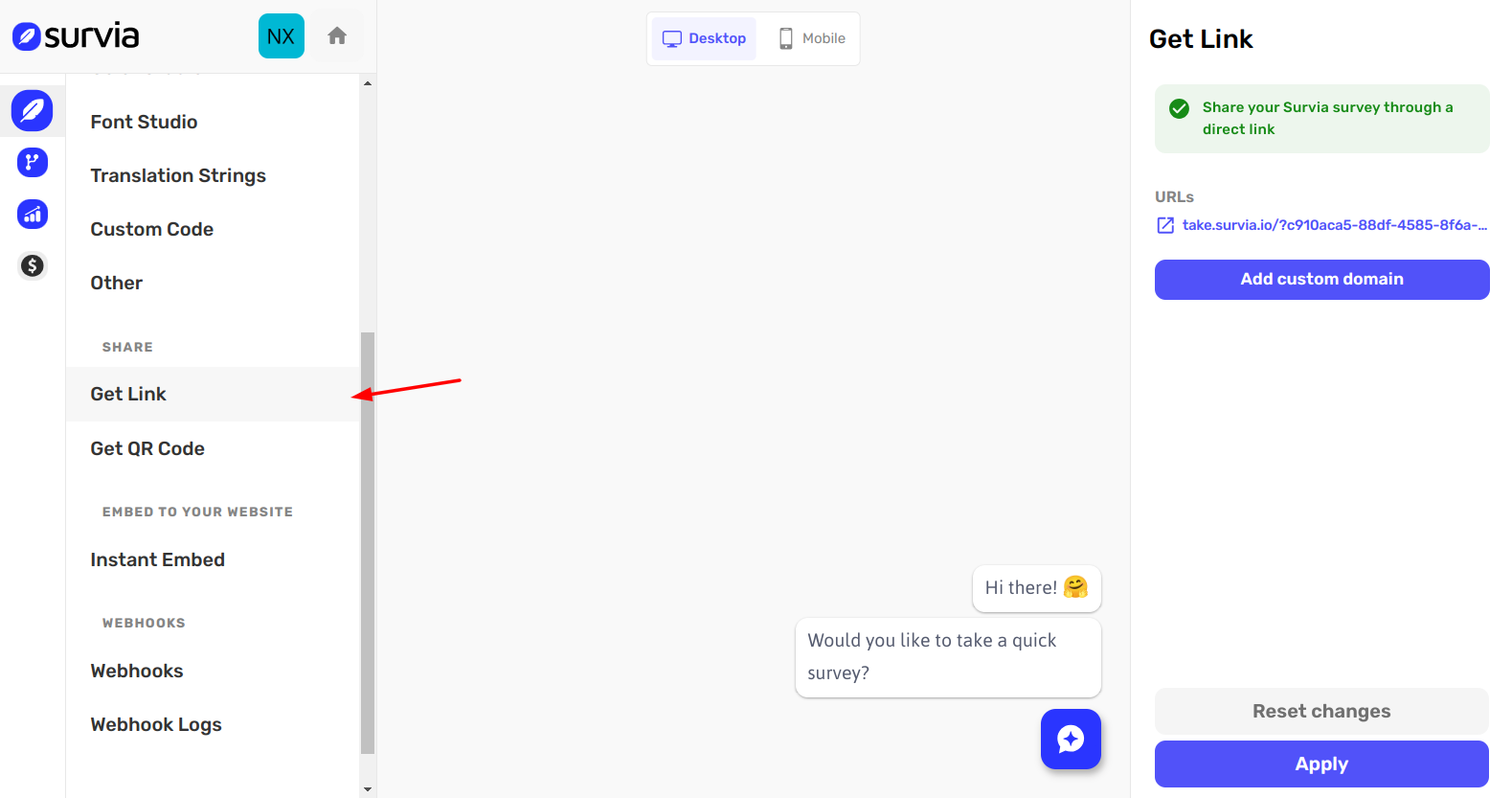
-
Click on "Add Custom Domain"
Once you're on the Get Link page, click the Add custom domain button to begin the setup.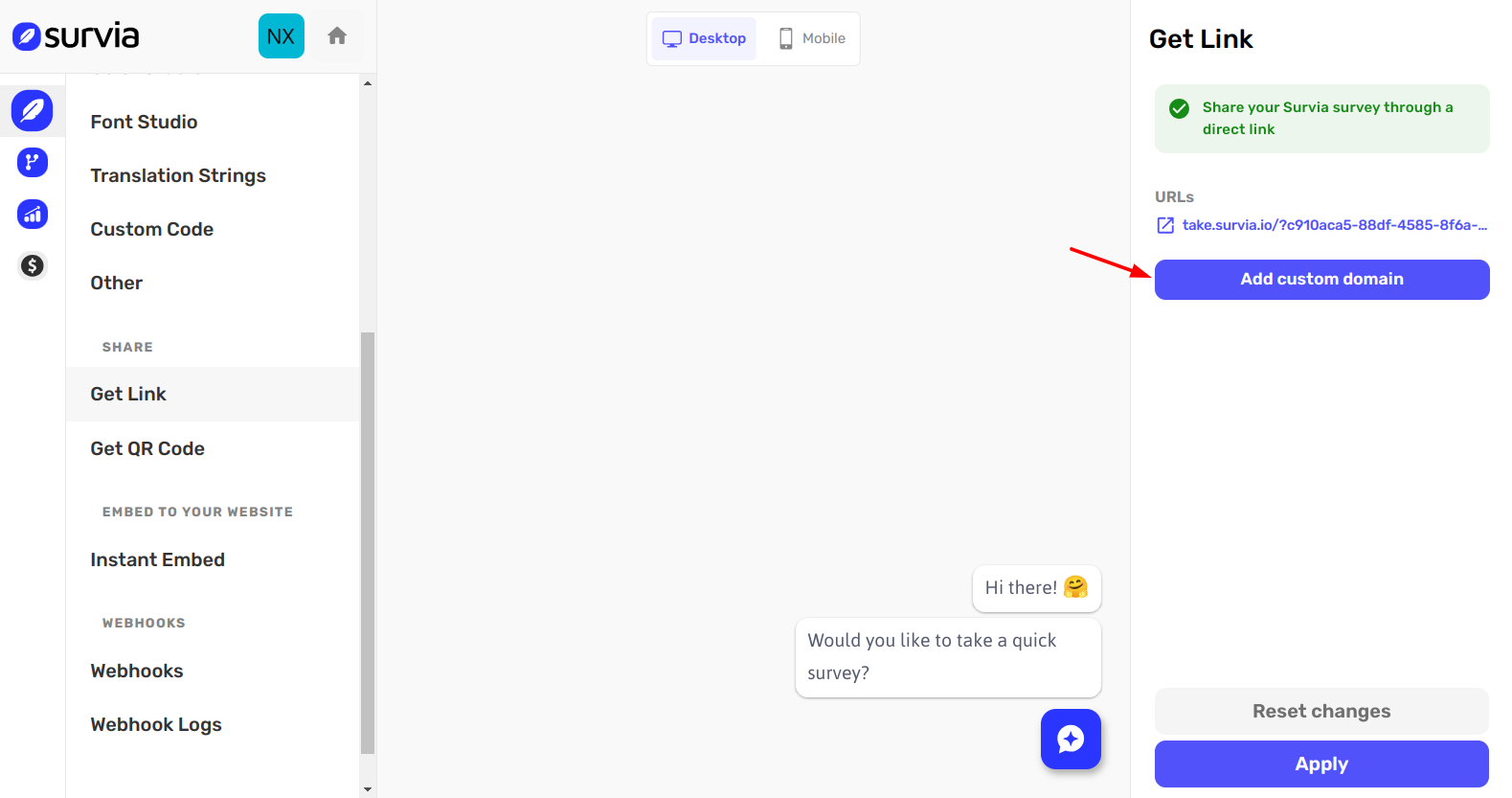
-
Add the CNAME Record to Your Domain
A prompt will appear asking you to add a CNAME record to your domain. The required CNAME record is:take.survia.io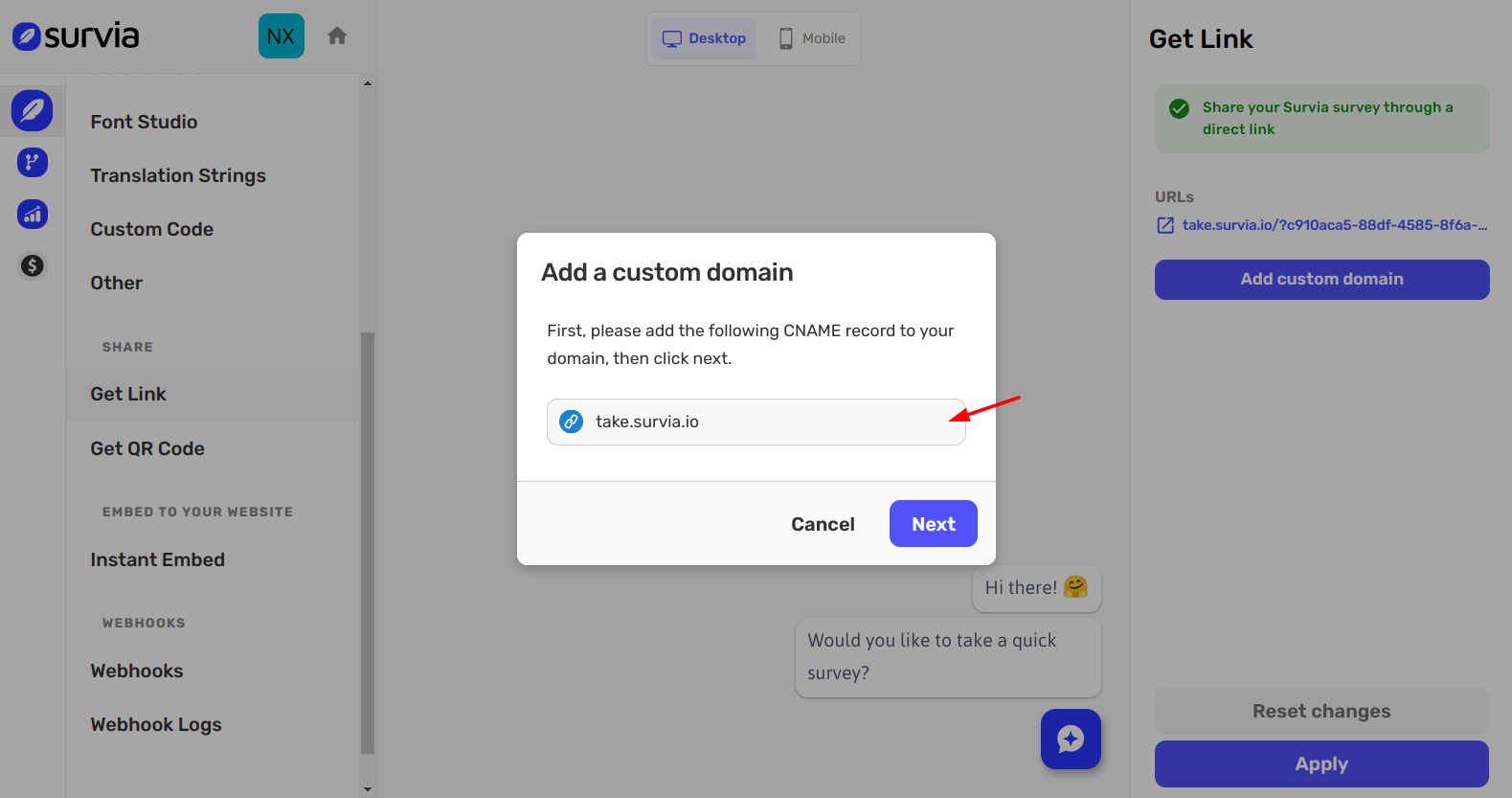
Add this CNAME record to your domain settings. Once the CNAME record has been successfully added, click Next.
-
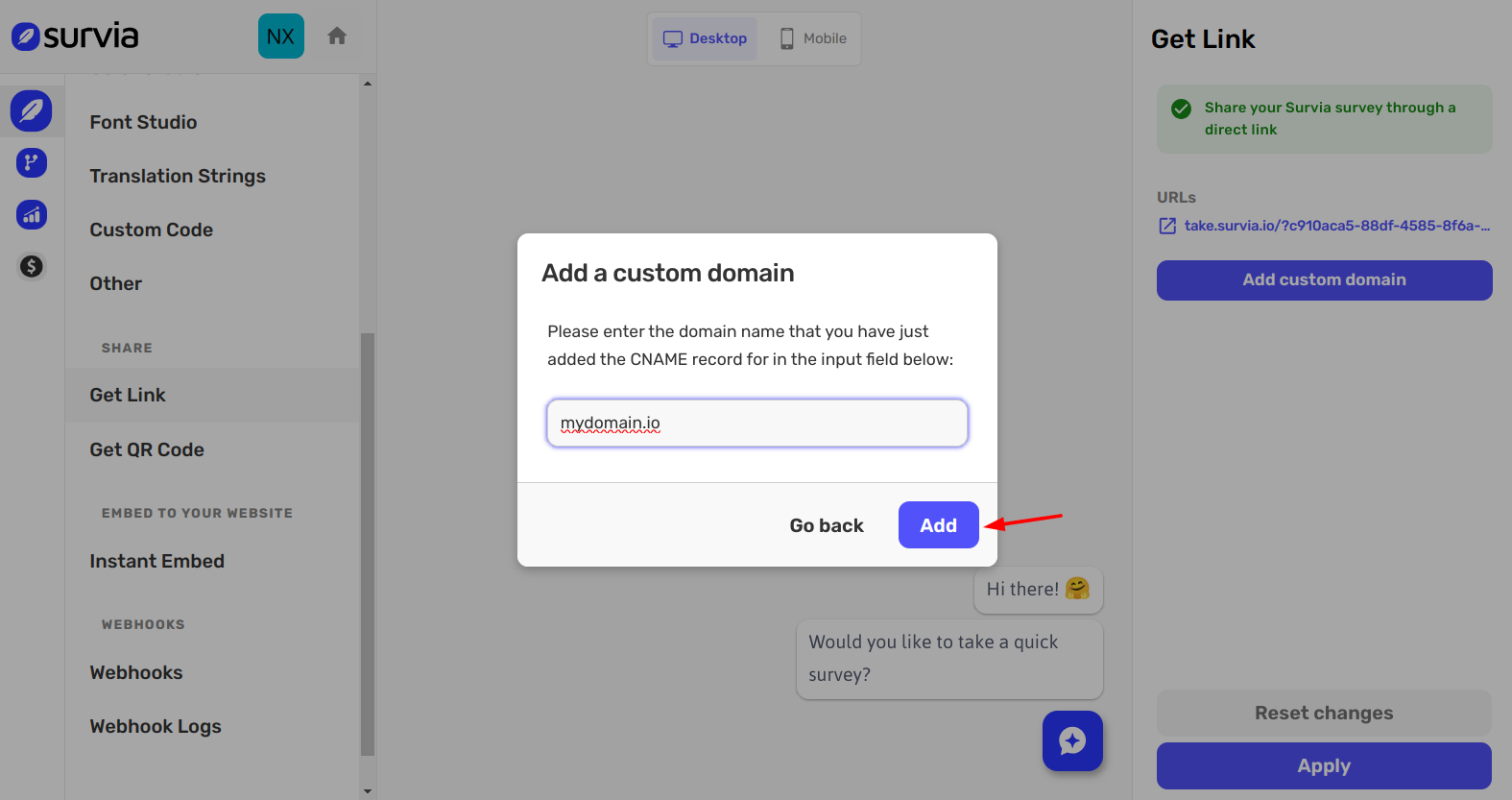
Enter Your Custom Domain
After adding the CNAME record, return to Survia and enter the custom domain that you've just configured in the provided input field.Finally, click the Add button to complete the custom domain setup.
Once you have completed these steps, your survey will be accessible through your custom domain instead of the default Survia URL. If you encounter any issues or need assistance, don't hesitate to reach out to our Help Center.