
Integrations & Customization
Customizing Your Survey's Look and Feel
Want to personalize the appearance of your survey? Survia offers a range of customization options on the Look and Feel page, allowing you to adjust everything from the logo to the layout.
Here's how you can make your survey truly yours!
Logo Customization
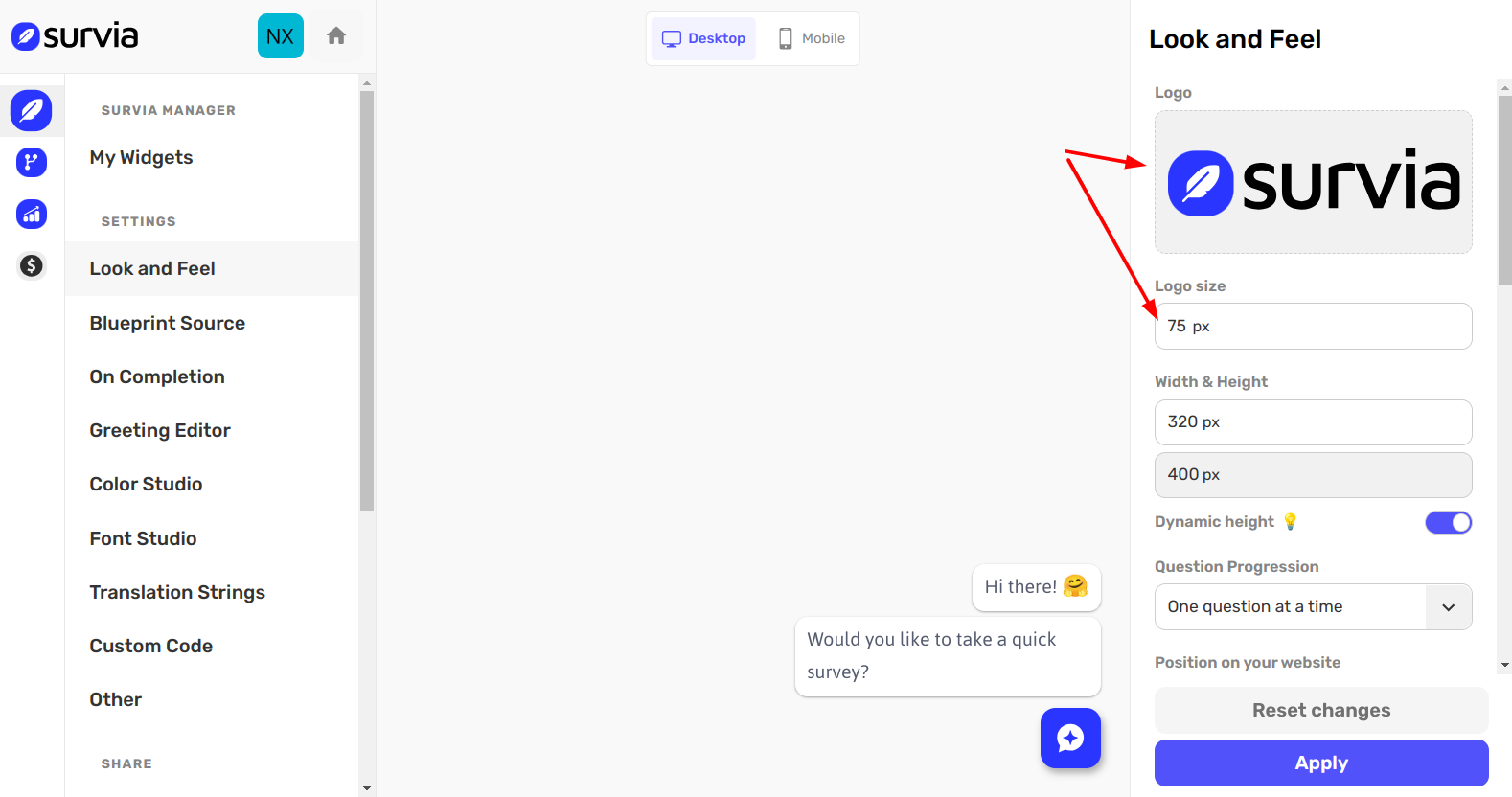
- Upload Logo: Upload your own brand logo.
- Logo Size: Adjust the size of your logo to match your brand. The default size is 75px.
Question Progression
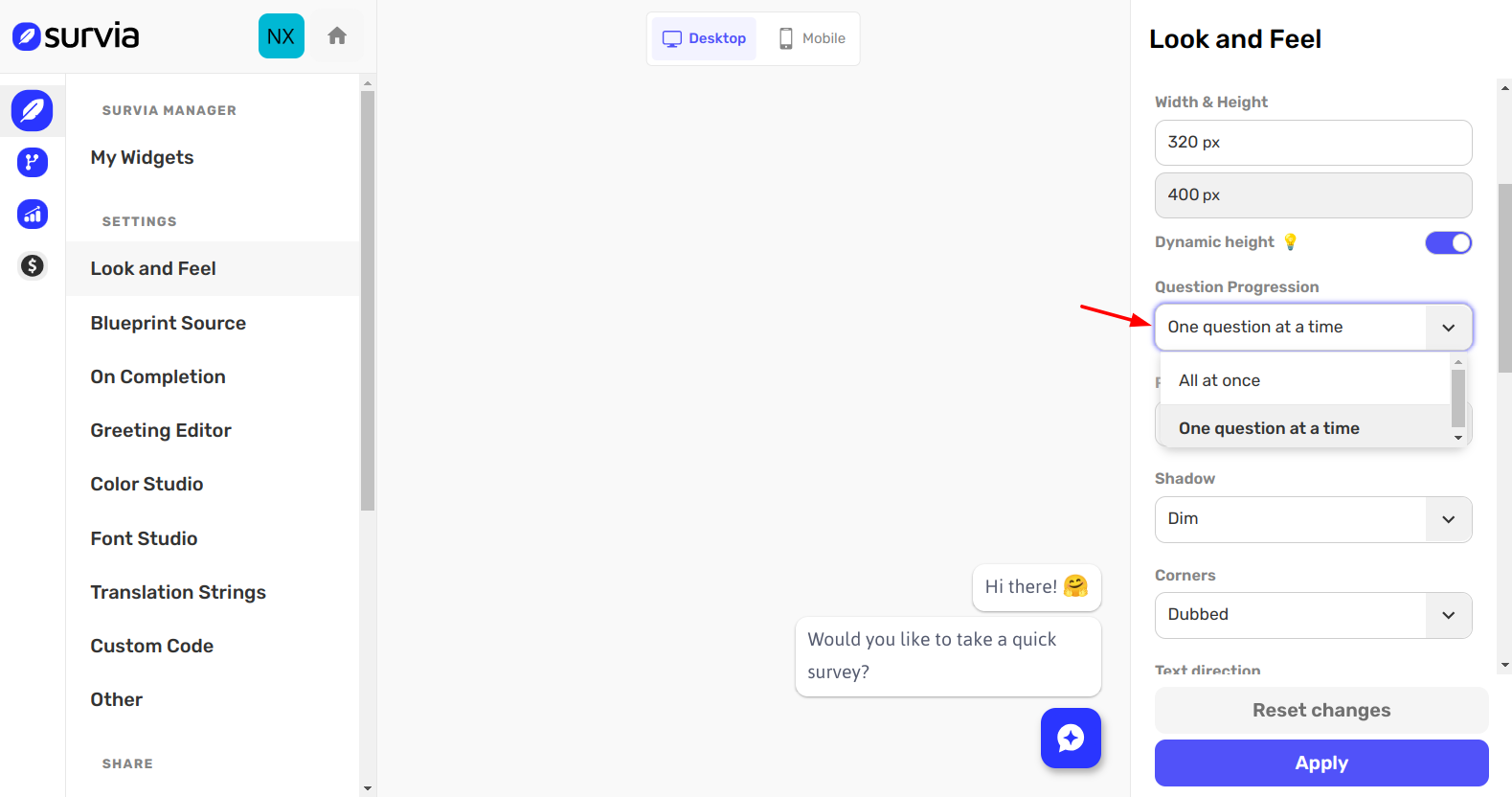
Control how questions are presented in your survey:
- One Question at a Time: Presents each question individually in a slide mode.
- All at Once: All the questions will show at once, and a scrollbar will appear.
Position on Your Website
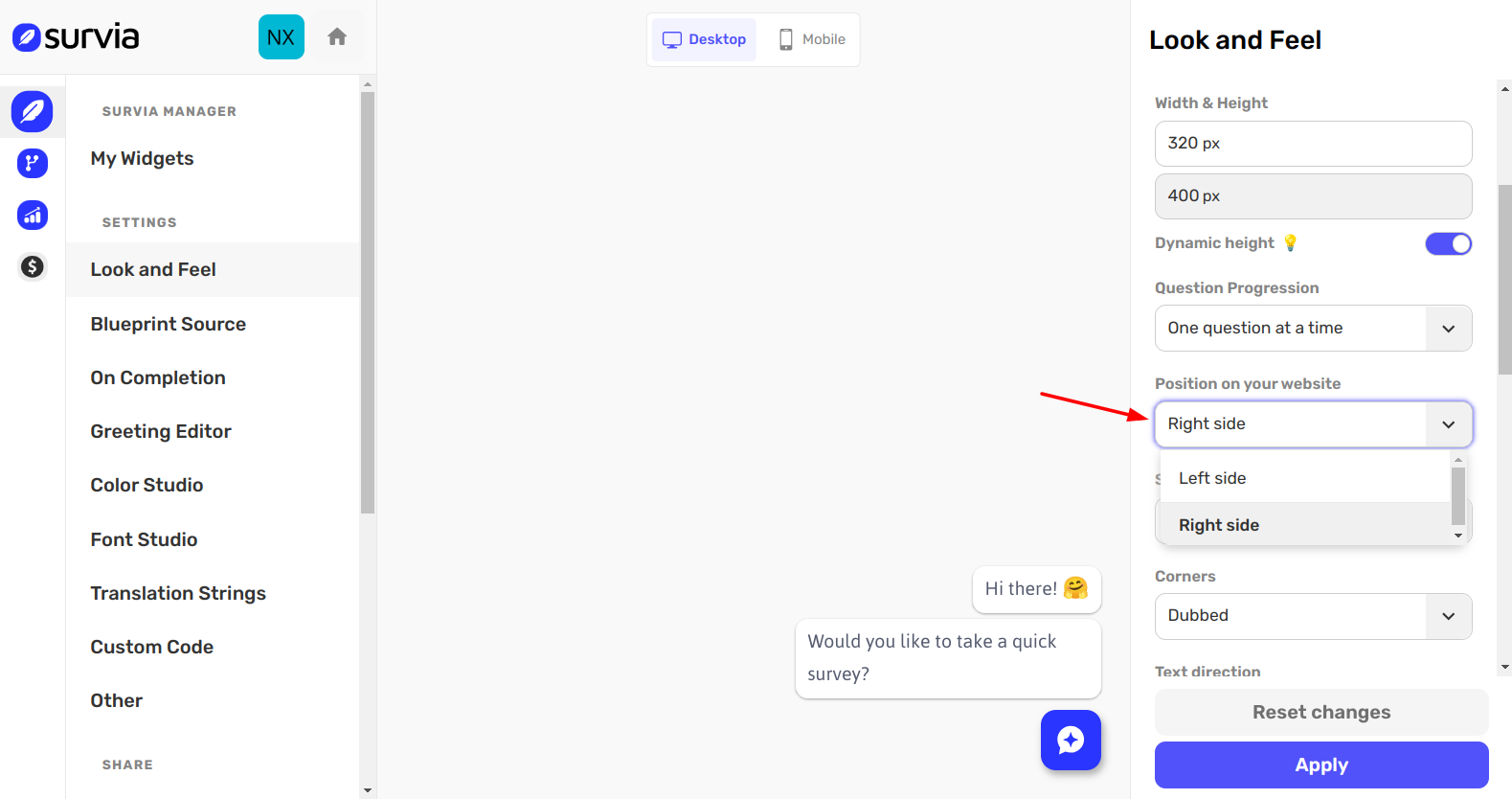
Choose where the survey widget will appear on your website:
- Left Side: The widget will appear on the left side of your website.
- Right Side: The widget will appear on the right side of your website.
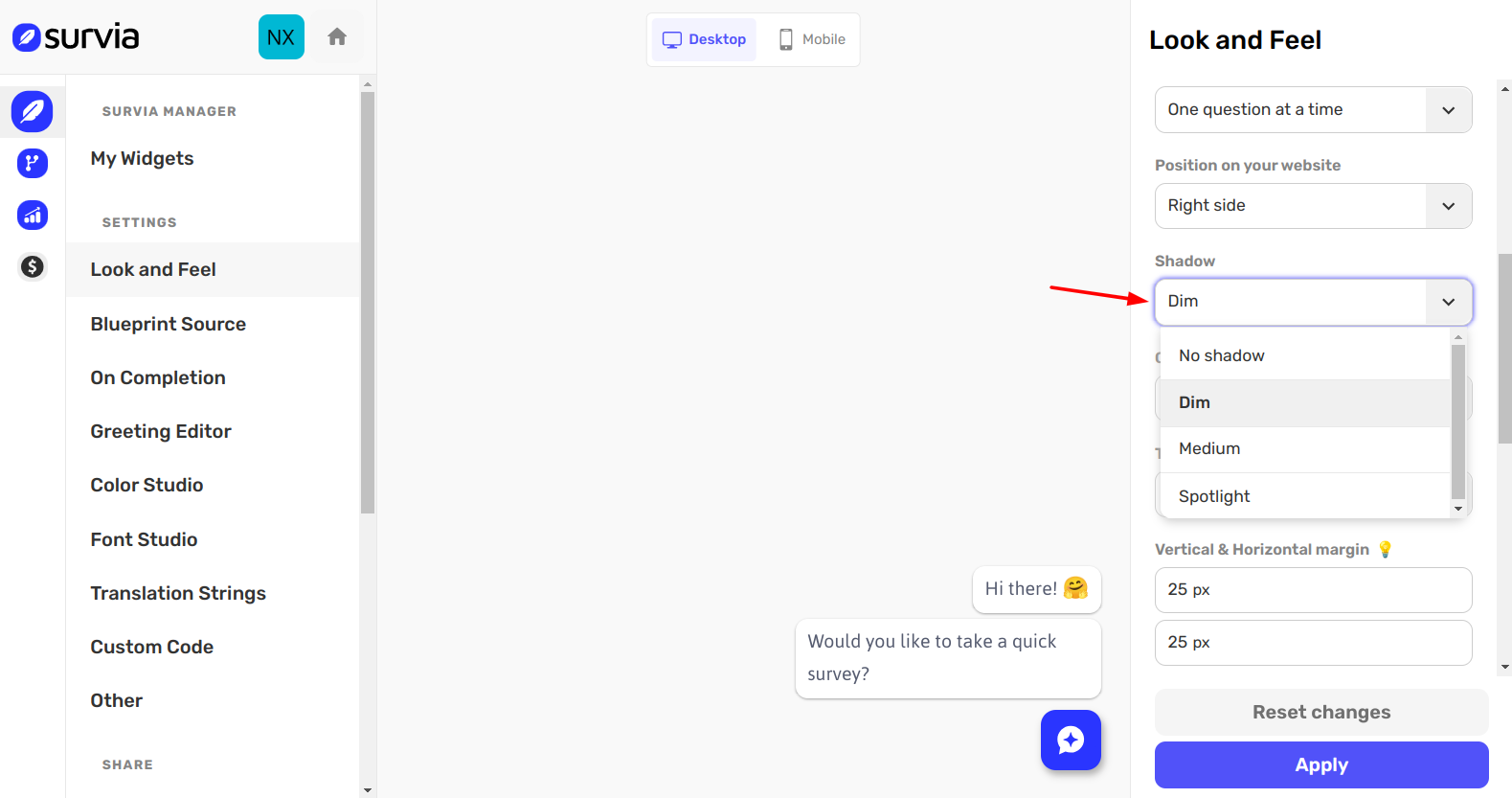
Shadow
Add a shadow effect to your survey to make it pop visually:
- Dim: A subtle shadow effect.
- Medium: A balanced shadow for better contrast.
- Spotlight: A stronger shadow effect for emphasis.
Corners
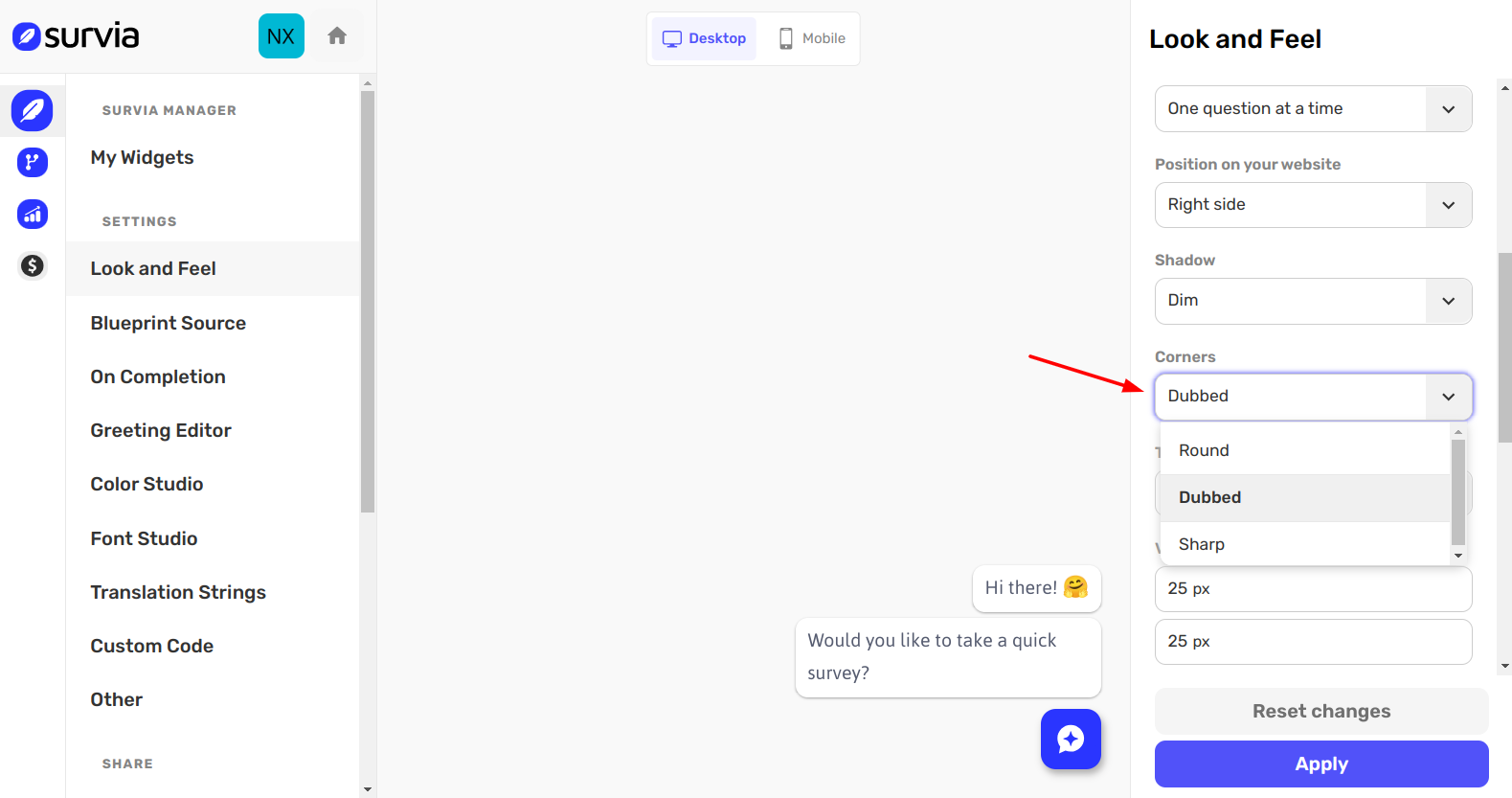
Customize the shape of your survey corners, choosing between:
- Round: Smooth, rounded corners.
- Dubbed: A soft, slightly squared corner style.
- Sharp: Angular, sharp-edged corners.
Text Direction & Margins
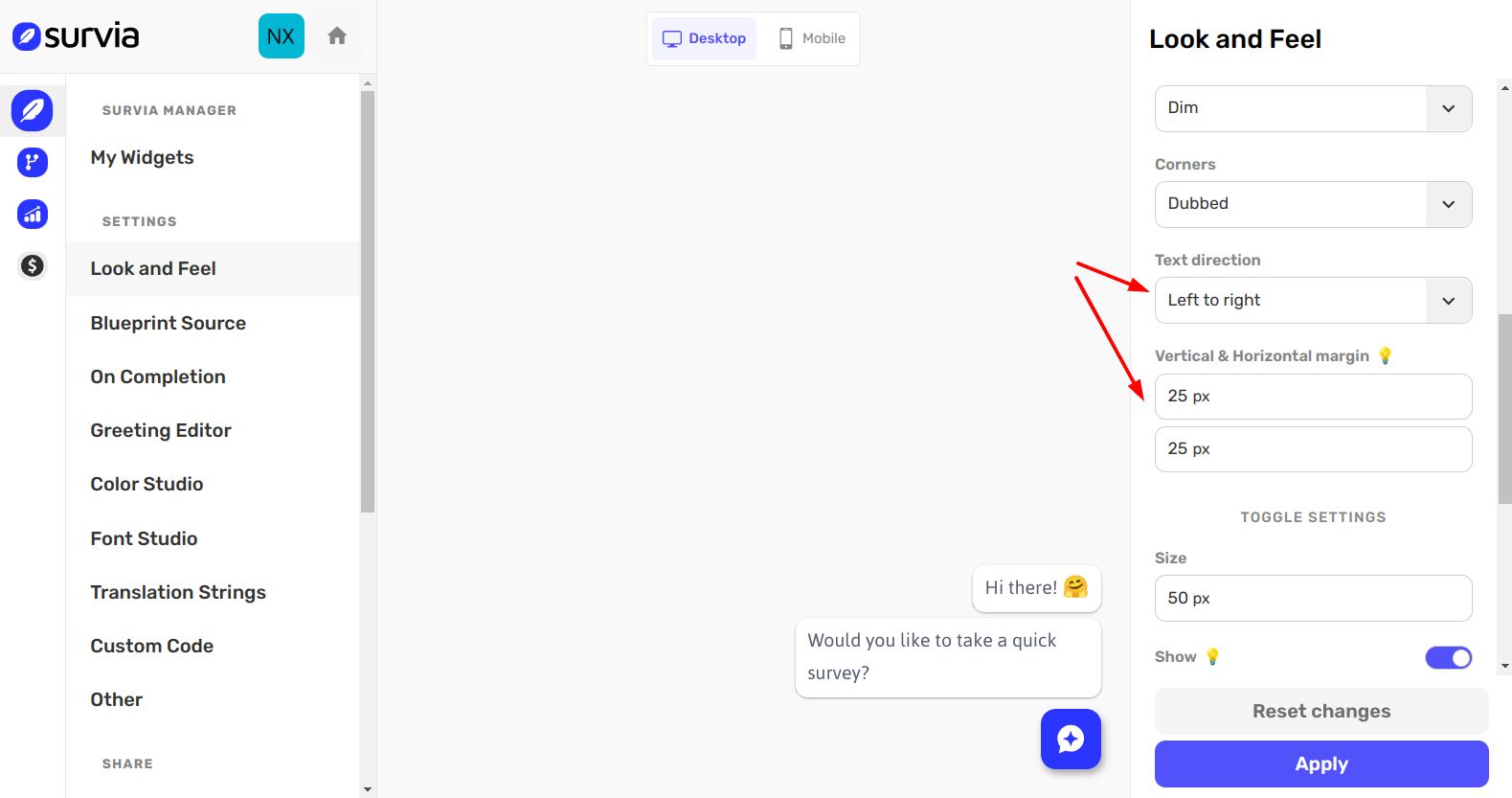
- Text Direction: Control the orientation of the text in your survey (left-to-right or right-to-left).
- Vertical & Horizontal Margin: Adjust the spacing around the content of your survey. For example, a margin of 25px will create a clean, balanced layout.
Toggle Settings
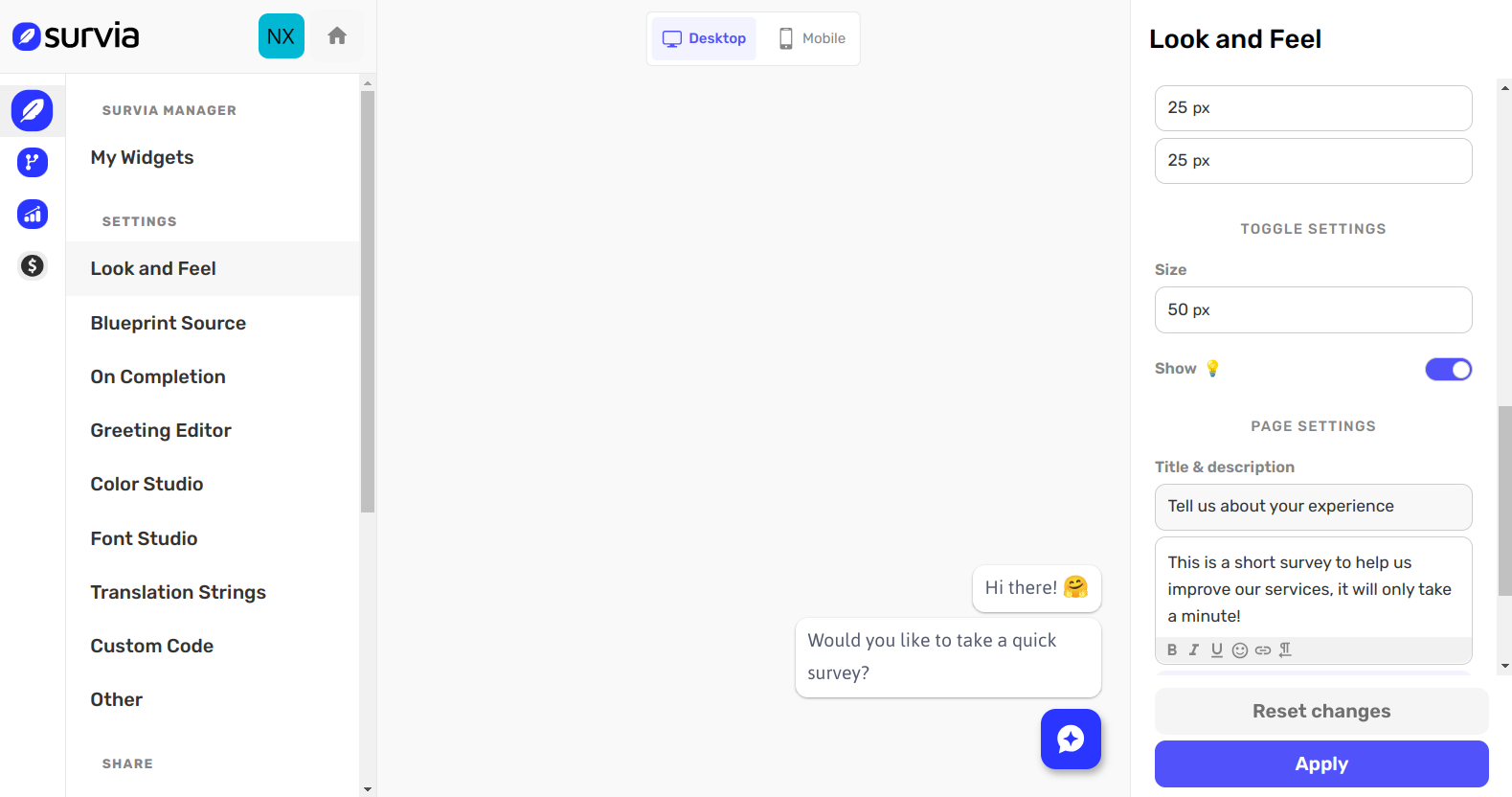
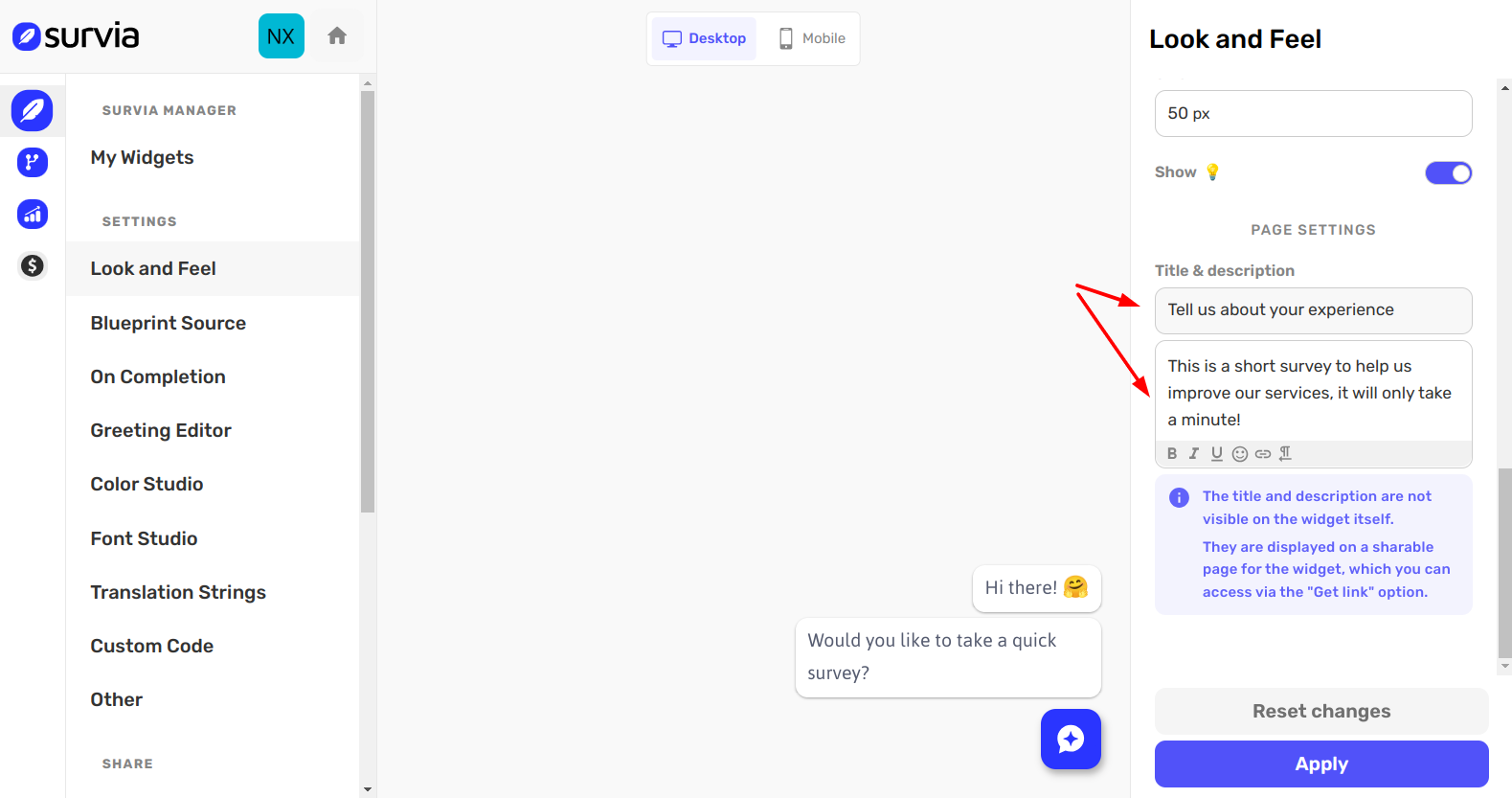
- Size: Control the size of the toggle button for better visibility. A size of 50px works well for most surveys.
- Show: Toggle to show or hide the toggle button itself in the survey. You can choose whether the toggle should be visible to respondents.
Page Settings
- Title: Choose a catchy title that explains what the survey is about (e.g., "Tell Us About Your Experience").
- Description: Provide a brief description of the survey's purpose (e.g., "This is a short survey to help us improve our services, it will only take a minute!").
- Visibility: Note that the title and description aren’t displayed directly on the survey widget but are visible on the shareable survey page accessed via the Get Link option.
By customizing these settings, you can ensure your survey aligns with your brand and provides a visually appealing experience for respondents. If you need further assistance, don't hesitate to reach out to our Help Center.